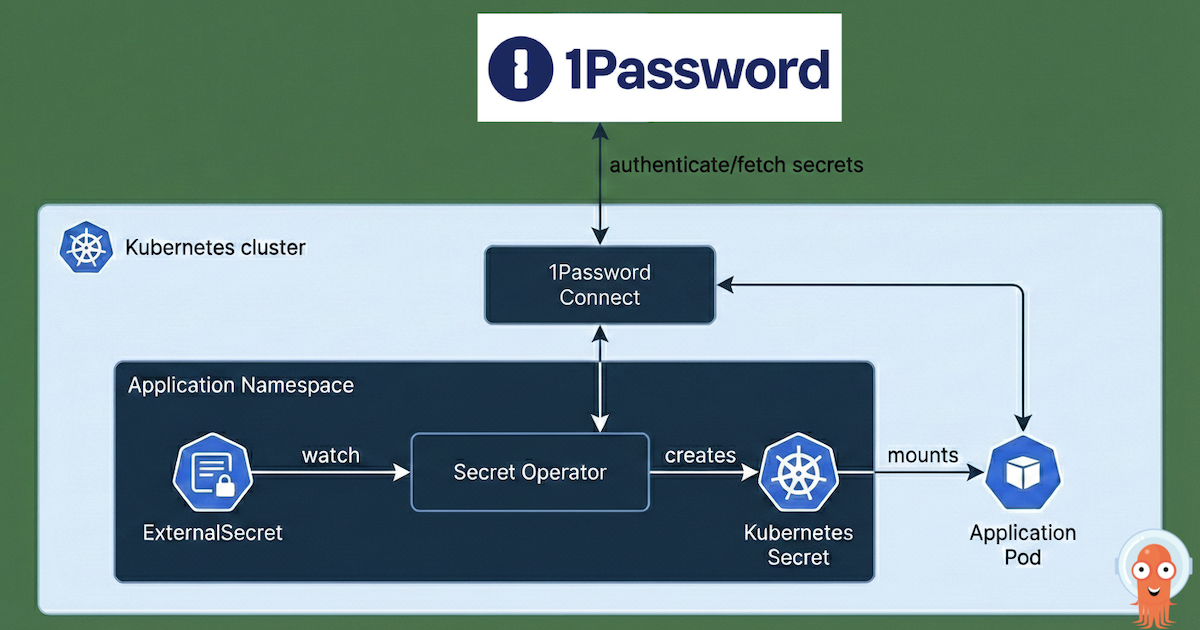

After building a Kubernetes cluster and setting up Argo CD to manage its configuration, what’s the very next thing you should install? For me, both in production and in my homelab, the answer is always the same: External Secrets Operator. This post explains why and shows you how I integrate it with 1Password to bring enterprise-grade secret management to my home setup.
In my previous posts, I’ve walked through building a homelab network, choosing the hardware, and even automating Kubernetes deployments with Talos and GitOps. But none of that is complete without a robust way to handle secrets.
Why External Secrets is Crucial#
Everything needs secrets. From database passwords and API keys to TLS certificates for mTLS, your applications can’t function without them. The worst thing you can do is hardcode them in your Git repository. A better, but still flawed, approach is to use sealed secrets. The best practice, however, is to sync them from a dedicated secret manager.
This is where External Secrets Operator comes in. It allows your Kubernetes cluster to fetch secrets from an external source, like AWS Secrets Manager, Azure Key Vault, or, in my case, 1Password, and automatically create native Kubernetes Secret objects.
For my homelab, I chose 1Password for a simple reason: I already use it and pay for it. It’s my trusted password manager, and its integration with External Secrets means I can use it as a stand-in for the cloud-native secret stores I use in production environments. This approach bridges the gap between enterprise best practices and a practical homelab implementation.
The Integration: External Secrets and 1Password#
To make this work, we need two components in the cluster:
1Password Connect: A service that provides a bridge between the Kubernetes cluster and the 1Password API.
External Secrets Operator: The operator that watches for
ExternalSecretresources and uses providers like 1Password Connect to create Kubernetes secrets.
Here’s a step-by-step guide to how I set it up.
Prerequisites#
This guide assumes you have:
A running Kubernetes cluster. If not, you can follow my guide on provisioning a Talos cluster.
Argo CD installed and managing itself via GitOps, as detailed in my post on locking down Cilium with Argo CD.
The 1Password CLI installed on your local machine.
Step 1: Prepare 1Password#
First, we need to set up 1Password to allow our cluster to connect.
Create a new vault for your homelab secrets. This isolates them from your personal credentials.
op vault create "homelab-k8s"
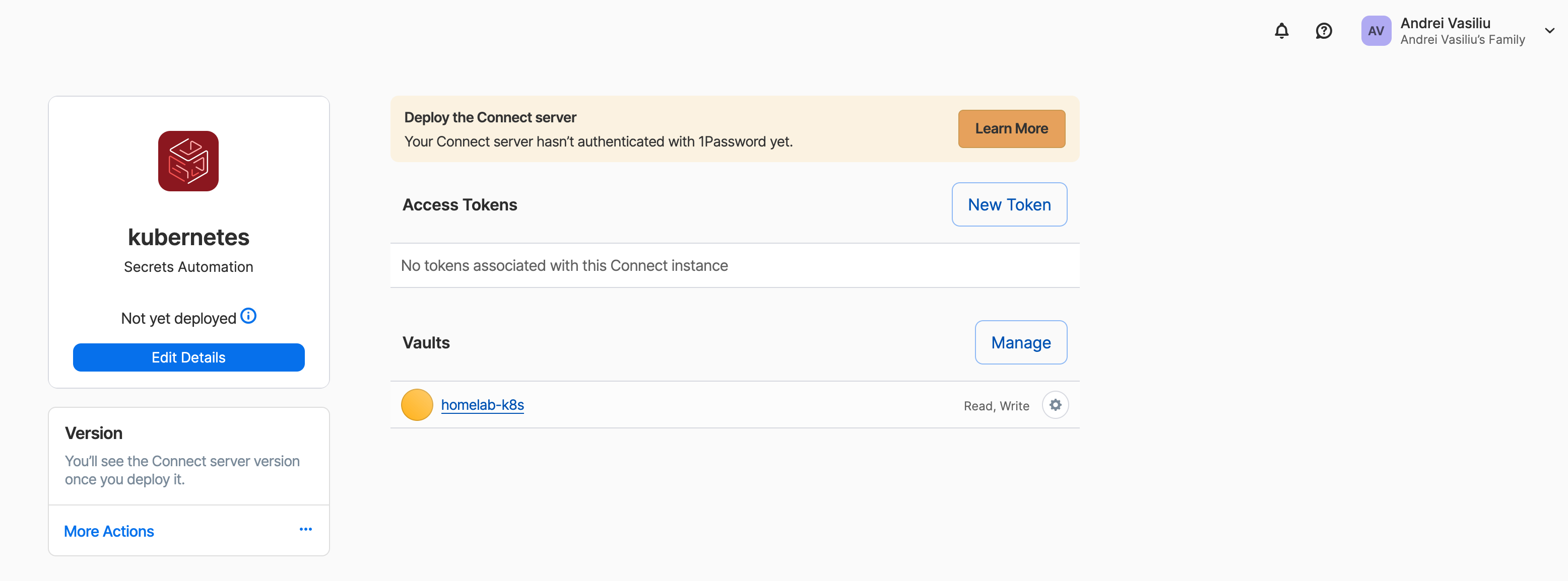
Create a 1Password Connect Server configuration. This command links the Connect server to your new vault and generates a
1password-credentials.jsonfile that the Connect server will use to authenticate.op connect server create "kubernetes" --vaults "homelab-k8s"This will prompt you to save the
1password-credentials.jsonfile. Keep it safe.Create a Kubernetes secret from the credentials file. The 1Password Connect operator needs this file to start. I create it in the
external-secretsnamespace, which I use for all related components.kubectl create secret generic op-credentials -n external-secrets --from-literal=1password-credentials.json="$(cat /path/to/1password-credentials.json | base64)"Generate an access token for the External Secrets Operator. This token allows the External Secrets Operator to authenticate with the 1Password Connect server.
export OP_ACCESS_TOKEN=$(op connect token create "external-secret-operator" --server "kubernetes" --vault "homelab-k8s")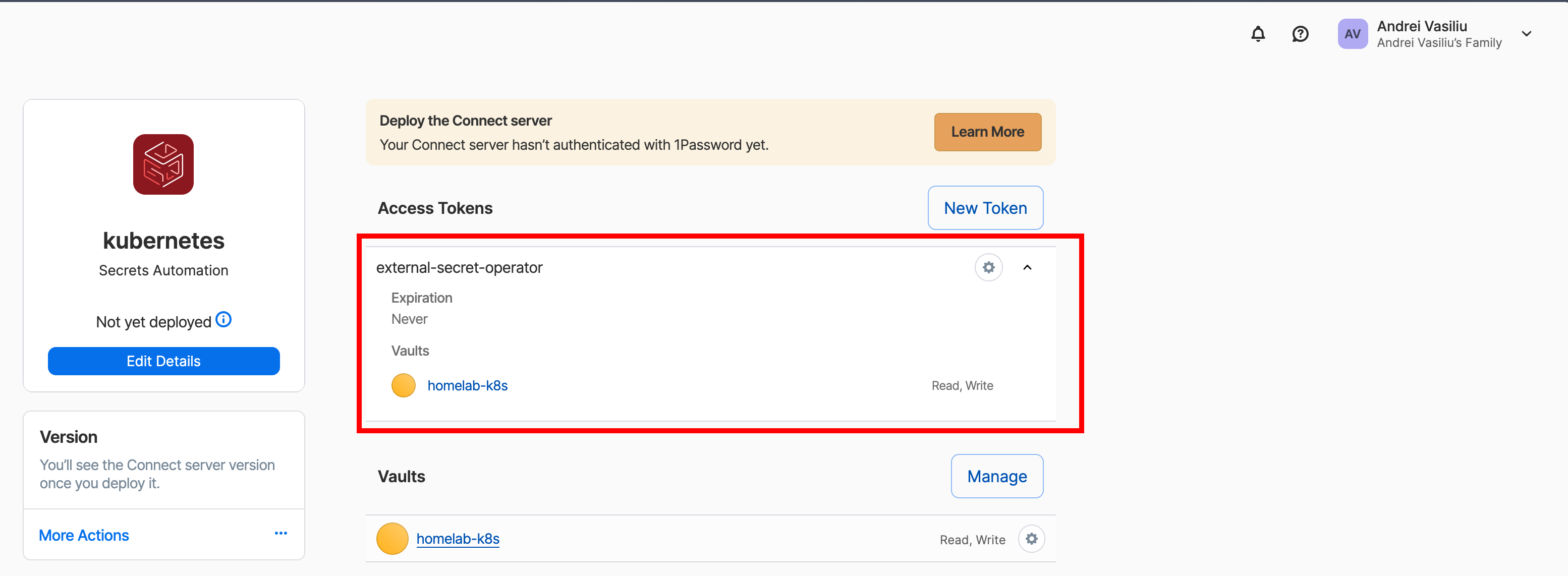
Create a Kubernetes secret for the access token.
kubectl create secret -n external-secrets generic op-access-token --from-literal=token=$OP_ACCESS_TOKEN
At this point, you have two secrets in your cluster: op-credentials and op-access-token.
Step 2: Deploy the Operators with Argo CD#
I use Argo CD to manage the deployment of both the 1Password Connect server and the External Secrets Operator using their official Helm charts. This is all managed declaratively through my homelab-k8s-argo-config repository, following the “app-of-apps” pattern I’ve described previously.
Adding a new tool to the platform follows a clear, repeatable process:
Base Configuration: I add the base
Applicationmanifest for the new tool (in this case,external-secretsandonepassword-connect) to thebase/directory of the repository. This points to the official Helm chart and sets up the default configuration.Environment Overlays: I then create environment-specific overrides in the
environments/dev/directory. This allows me to customize the installation for my development cluster.App-of-Apps: Finally, the root application in
environments/dev/_root/discovers and deploys the new manifests, bringing the tools online.
Here is how the external-secrets application looks in Argo CD after being deployed through this GitOps workflow.
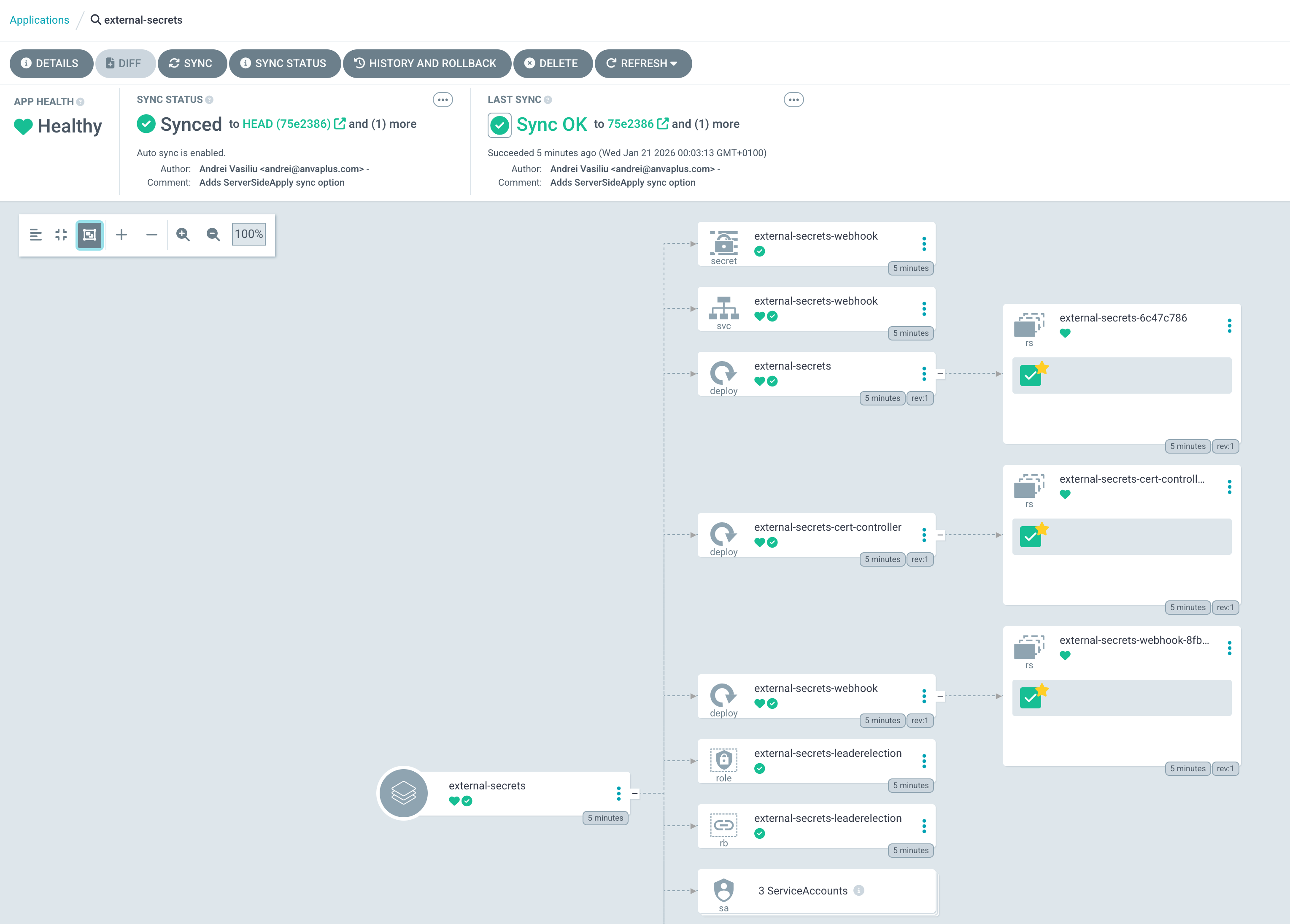
And here is the 1Password Connect application, which provides the bridge to the 1Password API.
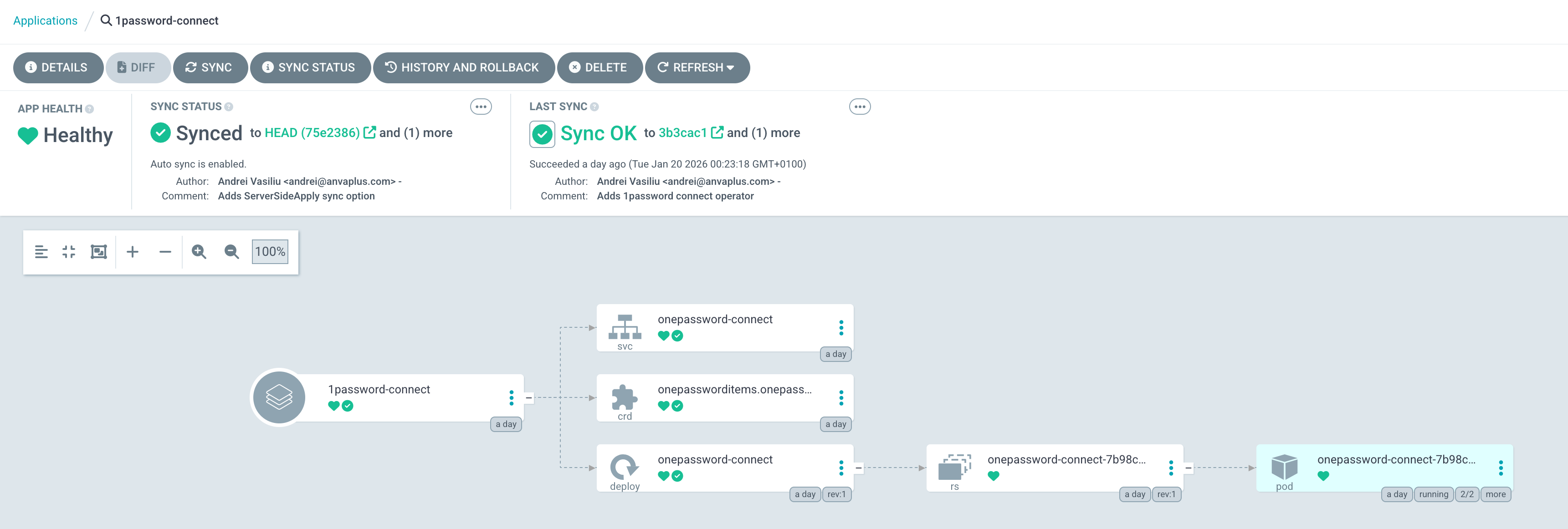
This declarative approach ensures that my secret management infrastructure is version-controlled, auditable, and automatically reconciled, just like any other component of my platform. You can find the 1Password chart here.
Step 3: Create a ClusterSecretStore#
With the operators running, the final piece is to tell the External Secrets Operator how to connect to 1Password. We do this by creating a ClusterSecretStore.
apiVersion: external-secrets.io/v1
kind: ClusterSecretStore
metadata:
  name: onepassword-cluster-secret-store
  namespace: external-secrets
spec:
  provider:
    onepassword:
      connectHost: http://onepassword-connect:8080
      vaults:
        homelab-k8s: 1 # The vault to search in, with priority.
      auth:
        secretRef:
          connectTokenSecretRef:
            name: op-access-token # The secret with the access token
            key: token
            namespace: external-secrets
This resource, also managed by Argo CD, configures the connection to the onepassword-connect service and specifies which vault to use.
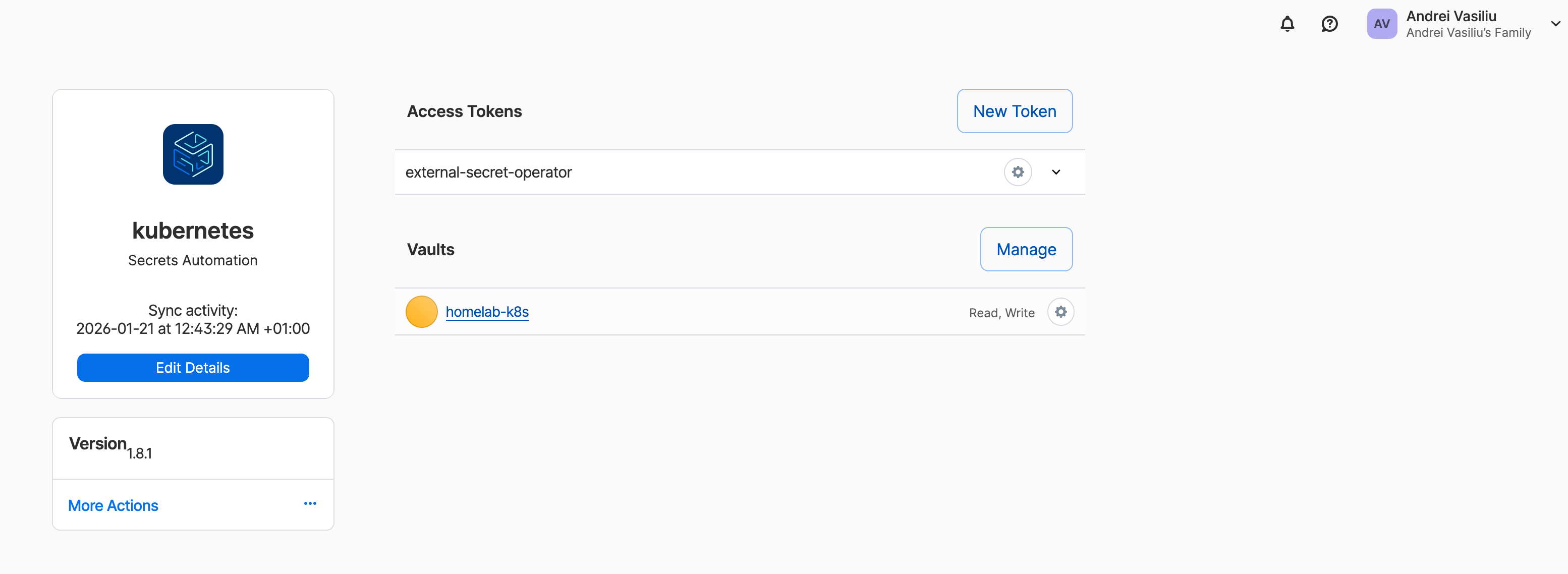
In the 1password UI the error will disappear and you will see the connect server version.
Step 4: Test the Integration#
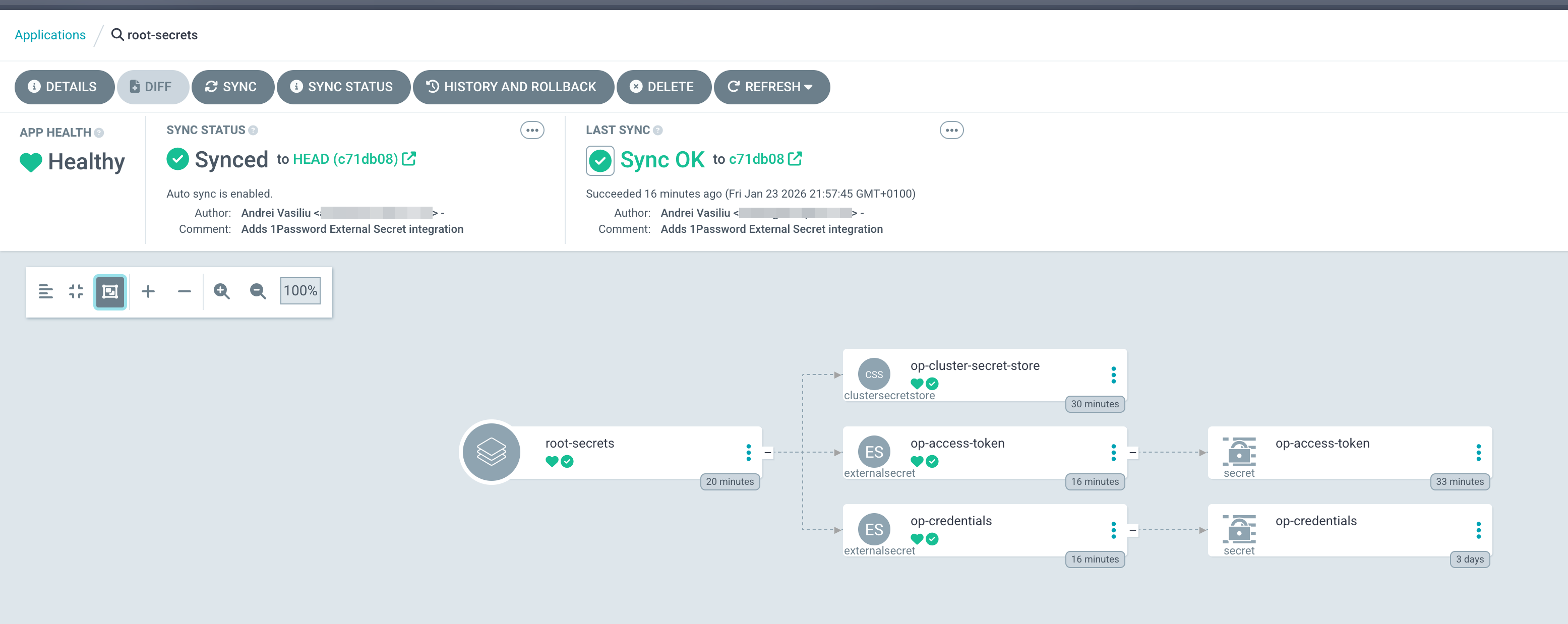
The best way to test the setup is to use it to manage the very secrets we just created. I store the contents of 1password-credentials.json and the OP_ACCESS_TOKEN in 1Password and then use an ExternalSecret to sync them back to the cluster.
Here’s how you can define the ExternalSecret resources:
---
apiVersion: external-secrets.io/v1
kind: ExternalSecret
metadata:
  # name of the ExternalSecret & Secret which gets created
  name: op-credentials
  namespace: external-secrets
spec:
  secretStoreRef:
    kind: ClusterSecretStore
    name: onepassword-cluster-secret-store
  target:
    creationPolicy: Owner
  data:
  - secretKey: 1password-credentials.json
    remoteRef:
      # 1password-entry-name
      key: EXTSEC_1Password_k8s_connect_cluster
      # 1password-document-name
      property: 1password-credentials.json

---
apiVersion: external-secrets.io/v1
kind: ExternalSecret
metadata:
  # name of the ExternalSecret & Secret which gets created
  name: op-access-token
  namespace: external-secrets
spec:
  secretStoreRef:
    kind: ClusterSecretStore
    name: onepassword-cluster-secret-store
  target:
    creationPolicy: Owner
  data:
  - secretKey: token
    remoteRef:
      # 1password-entry-name
      key: EXTSEC_1Password_k8s_server_access_token
      # 1password-field
      property: password
Once I commit this manifest to my GitOps repository, Argo CD applies it, and the External Secrets Operator springs into action. It fetches the token from my homelab-k8s vault in 1Password and creates the op-access-token Kubernetes secret. Now my secrets are managed through GitOps, just like the rest of my cluster configuration.
Conclusion#
By integrating External Secrets with 1Password, I’ve created a robust, secure, and automated way to manage secrets in my homelab. This setup mirrors the patterns used in enterprise environments, providing a valuable learning experience while keeping my homelab secure.
With this foundation in place, I can now move on to deploying applications that rely on these secrets, which I’ll cover in future posts. Stay tuned! Andrei